





Setting Custom White Balance (EOS 7D Mark II)
Solution
Custom white balance enables you to manually set the white balance for a specific light source for better accuracy. Perform this procedure under the actual light source to be used.
The setting procedure is explained below.
1. Set the camera's power switch to <ON>.
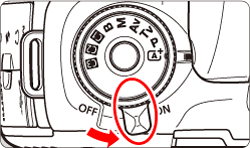
2. Set the Mode Dial to < P / Tv / Av / M / B>.

3. Shoot a white object.

- Look through the viewfinder and aim the entire dotted line box (shown in the illustration) over a plain, white object.
- Focus manually and shoot with the standard exposure set for the white object.
- You can use any white balance setting.
4. Press the <MENU> button to display the menu screen.
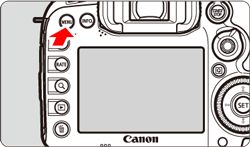
5. Press the < > button and select the [
  ] tab.
> button and select the [ ] tab.

6. Turn the < > dial and select the [
  ] tab.
> dial and select the [ ] tab.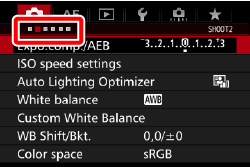

7. Turn the < > dial to select [Custom White Balance], then press <
 >.
>.
> dial to select [Custom White Balance], then press <>.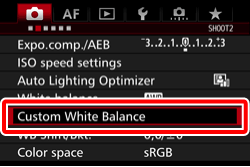

8. Turn the <> dial to select the image captured in step 3, then press <>.
> dial to select the image captured in step 3, then press <>.
9. Turn the <> dial to select [OK], then press <>.
> dial to select [OK], then press <>. 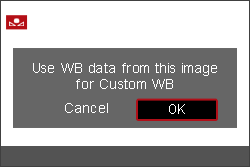
Press the <MENU> button to exit the menu.
10. Press the <WB・ > button.
> button.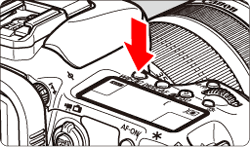
11. Look at the LCD panel and turn the <> dial to select < >.
>.
> dial to select <>.
12. Shoot.
IMPORTANT
- If the exposure obtained in step 3 differs greatly from the standard exposure, a correct white balance may not be obtained.
- In step 8, the following images cannot be selected: Images captured while the Picture Style was set to [Monochrome], multiple-exposure images, and images shot with another camera.
NOTE
- Instead of a white object, a gray chart or 18% gray reflector (commercially available) can produce a more accurate white balance.
- The personal white balance registered with the EOS software will be registered under <>. If you perform step 8, the data for the registered personal white balance will be erased.