





Specifying a Paper Size
Solution
This section explains how to print a document on your computer by using the printer driver.
1. Open a document in an application and display the print dialog box.
- How to display the print dialog box differs for each application. For more information, see the instruction manual for the application you are using.
2. Select this machine and click [Preferences] or [Properties].
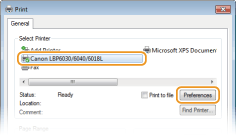
- The screen that is displayed differs depending on the application you are using.
3. Set the paper size.
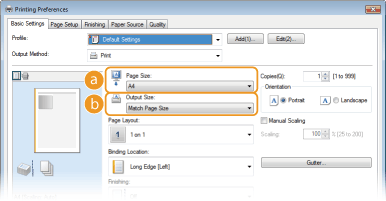
(a) [Page Size]
Select the size that you used when you created the document in the application.
(b) [Output Size]
Select the paper size to be used in the actual printing. If you select a size that differs from [Page Size], the printer driver will automatically enlarge or reduce the data to match the [Output Size].
4. Set other printing preferences as necessary.
NOTE:
You can register the settings you specified in this step as a "profile" and use the profile whenever you print. This eliminates the need to specify the same settings every time you print.
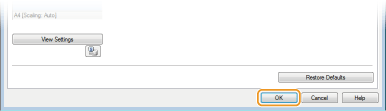
5. Click [OK].
6. Click [Print] or [OK].
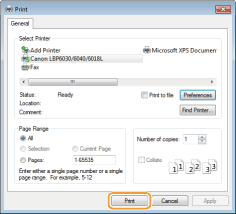
 Printing starts. On some applications, a screen like the one shown below appears.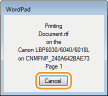
- If a screen like the one shown above appears, you can cancel printing by clicking [Cancel]. If the screen disappears or is never displayed, you can cancel printing in other ways.
IMPORTANT
Do not touch printed pages
- Do not touch newly printed sheets with your fingers or a cloth. You may get your fingers or the cloth dirty, and the toner may smear or come off the page.