





How do I turn off the setting that automatically deactivates the LCD screen?
Solution
The setting that automatically deactivates the screen cannot be turned off.
However, you can adjust the timing of the setting (Display Off) so that the screen stays on for up to 3 minutes.
Use the following procedure to change the settings for [Display Off].
IMPORTANT
The position and shape of the operation buttons, screens displayed, and setting items may differ according to the model you use.
1. Turn the camera on.
2. Press the <MENU> button to display the menu screen.
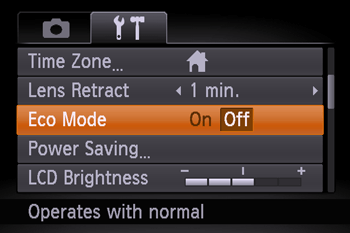
3. Select [Eco Mode] on the [  ]tab, and then press the [
  ], [
], [  ]buttons to choose [Off].
]tab, and then press the [ ], [ ]buttons to choose [Off].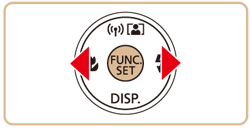
NOTE
These power-saving functions are not available when Eco mode is set to [On].
4. Press the [  ], [
], [  ] buttons to choose [Power Saving] on the [ ]tab, and then press the <FUNC./SET> (
 )button.
], [ ] buttons to choose [Power Saving] on the [ ]tab, and then press the <FUNC./SET> ()button.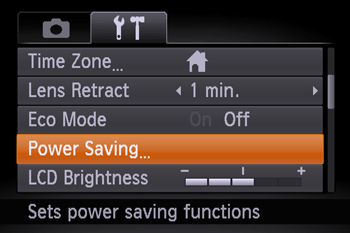
5. Select [Display Off] and push the [ ], [ ]buttons to adjust the time until the screen deactivates.
], [ ]buttons to adjust the time until the screen deactivates.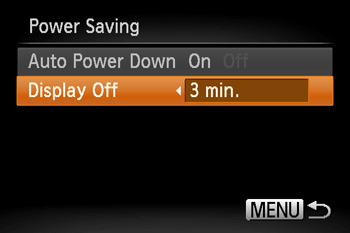
IMPORTANT
To conserve battery power, you should normally choose [On] for [Auto Power Down] and [1 min.] or less for [Display Off].
NOTE
The [Display Off] setting is applied even if you set [Auto Power Down] to [Off].
This completes the steps for changing the [Display Off] settings.