






Copy Has Vertical Black Streaks
Issue
Vertical black streaks appear on the output.
Cause and Solution
This section describes how to handle if the vertical black streaks appear on the output.
Make sure you load paper that meets the requirements for use.
NOTE
For information on the Paper Requirements, see "Paper Handling."
Clean the feeder roller, and the scanning area.
NOTE
For instructions on how to clean the machine, see "Cleaning the Machine."
In the following cases, the fixing unit may be dirty. Clean the fixing unit.
- When black streaks appears on the printed paper
- When a toner cartridge is replaced
1. Press [  ] (Menu).
] (Menu).2. Press [  ] or [
  ] to select <Adjustment/Cleaning>, and then press [OK].
] or [ ] to select <Adjustment/Cleaning>, and then press [OK].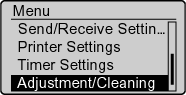
3. Press [ ] or [ ] to select <Clean Fixing Unit>, and then press [OK].
] or [ ] to select <Clean Fixing Unit>, and then press [OK].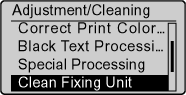
4. Confirm that paper is loaded, and then press [OK].
Load paper of the type displayed on the screen.
Cleaning starts. It takes approx. 68 seconds for MF8350Cdn and approx. 74 seconds for MF8050Cn/MF8030Cn.
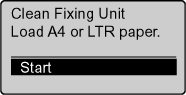
* We recommend that you should use plain paper to clean the fixing unit.
NOTE
If cleaning does not start, check if any jobs are stored in the memory.
When some jobs are stored in the memory, this function is not available.
5. Press [ ] (Menu), then close the menu screen.
] (Menu), then close the menu screen.Make sure that the toner cartridges are properly installed.