





An error message such as [Paper and ink do not match] or [No ink] is displayed (SELPHY CP1200)
Solution
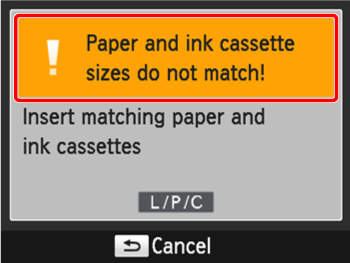
If an error icon appears in the printer's [LCD monitor] as shown below, or error messages such as [Paper and ink do not match] or [No Ink] appear in the camera's [LCD monitor], please check the paper cassette and the ink cassette combination for a mismatch.
1. Check the sizes indicated on the  [paper cassette] and the
  [ink cassette].
[paper cassette] and the [ink cassette].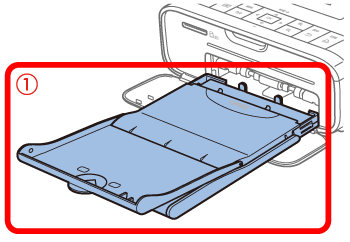
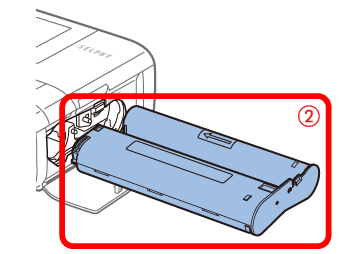
2. Check the size on the [paper cassette].
Open the <Outer cover>. Check the size.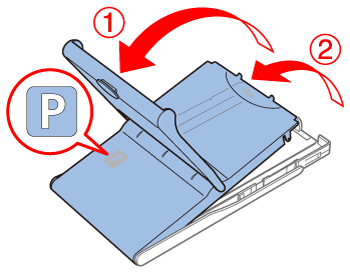
3. Check the [ink cassette] size.
Holding the ink cassette without touching the ink sheet, check the size to make sure it matches the size of paper you will print on.
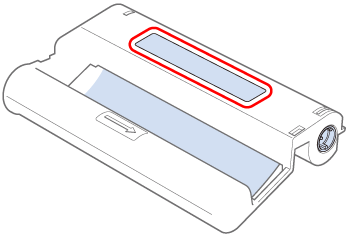
4. Confirm that the [paper cassette] and the [ink cassette] have the same size indication. Next, reinsert them to the printer, and then try to print again.
[paper cassette] and the [ink cassette] have the same size indication. Next, reinsert them to the printer, and then try to print again.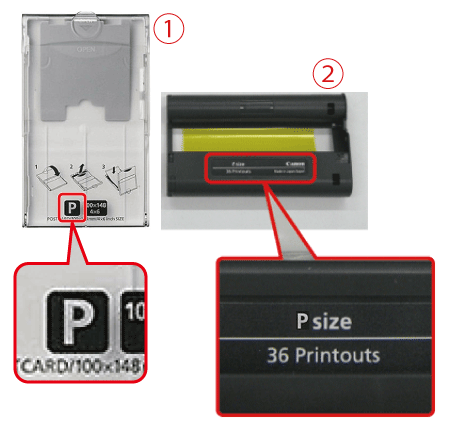
IMPORTANT
- Use of genuine Canon Color Ink/Paper Sets for SELPHY CP printers is recommended to achieve correct printing and excellent performance of this product.
- Canon Color Ink/Paper Sets for SELPHY ES and postcards cannot be used with this product.
- Never do the following, which may damage the printer or cause malfunction.
- Loading paper upside-down, with the glossy and back sides reversed
- Bending or separating paper at the perforations before printing
- Using label paper whose upper label surface is peeling off or has been partially pulled up
- Writing on paper before printing
- Reusing paper, as by printing on blank areas