





Shooting by Touching the Screen (Touch Shutter) (PowerShot G7 X)
Solution
With Touch Shutter, instead of pressing the shutter button, you can simply touch the screen and release your finger to shoot. The camera will focus on subjects and adjust image brightness automatically.
For a list of shooting modes in which [Touch Shutter] cannot be set, please refer to the information at the end of the page.1. Press the power button to turn the camera on.
2. Press the < > button, choose [Touch Shutter] on the [
  ] tab, and then choose [On].
> button, choose [Touch Shutter] on the [ ] tab, and then choose [On].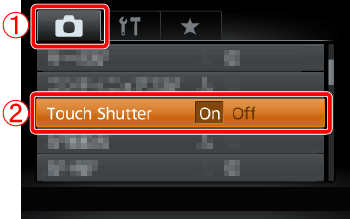
3. The following screen appears.
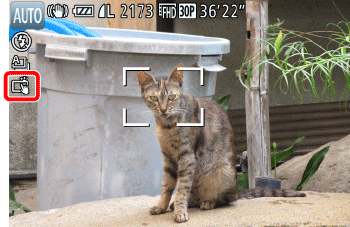
If the [Touch Shutter] icon appears in the upper left of the screen, the setting is complete.
1. Touch the subject on the screen, and then lift your finger immediately.
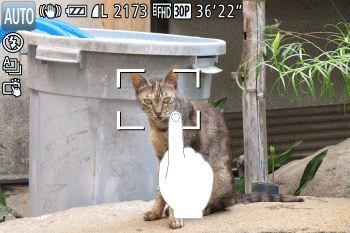
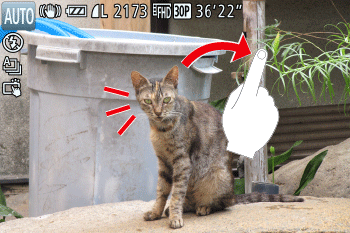
2. The camera shoots, as a shutter sound is played.
REFERENCE
Even while the shot is displayed, you can prepare for the next shot by touching [  ].
].
].3. To cancel touch shutter, choose [Off] in step 2.
•Touch Shutter cannot be set in the modes shown below.
| Model | Shooting Mode |
|---|---|
| PowerShot PowerShot G7 X | [Smile] ( ), [Wink Self-Timer] ( ), [Wink Self-Timer] ( ), [Face Self-Timer] ( ), [Face Self-Timer] ( ), [Star Portrait] ( ), [Star Portrait] ( ), [Star Nightscape] ( ), [Star Nightscape] ( ), [Star Trails] ( ), [Star Trails] ( ), [Star Time-Lapse Movie] ( ), [Star Time-Lapse Movie] ( ), [Miniature Effect] ( ), [Miniature Effect] ( ) ) |