





Displaying the Help Menu on the Camera's LCD Monitor (Help button)
Solution
Access on-screen descriptions of scenes detected by the camera, shooting advice, and playback instructions as follows.
IMPORTANT
- The position and shape of the operation buttons, screens displayed, and setting items may differ according to the model you use.
1. Press the <Help> ( ) button.
) button.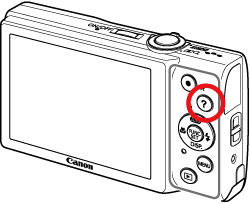
2. The following screen appears.
When the shooting mode is set to [Auto] ( ):
):
): 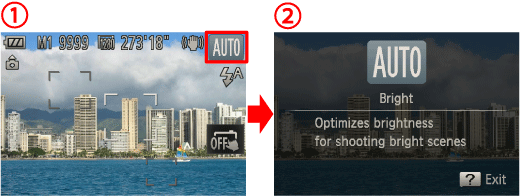
You can see the descriptions of the scene icons displayed in the top-right corner of the screen. Shooting advice is also displayed depending on the scene.
When the shooting mode is set to something other than [Auto] ():
): 
 If you press the <
 ><
>< > buttons and choose an item. The zoom lever and buttons are displayed overlaying the illustration of the camera.
 Choose an item and press the <
 > button.
An explanation of the item is displayed. To continue reading the explanation, press the <><> buttons to scroll up or down the screen.
><> buttons to scroll up or down the screen.Press the <  > button to return to the screen.
> button to return to the screen.In Playback mode:
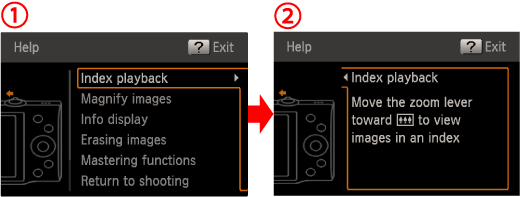 If you press the <><> buttons and choose an item. The zoom lever and buttons are displayed overlaying the illustration of the camera. Choose an item and press the < > button.
An explanation of the item is displayed. To continue reading the explanation, press the <><> buttons to scroll up or down the screen.
><> buttons to scroll up or down the screen.Press the < > button to return to the screen.
> button to return to the screen.On the MENU screen:
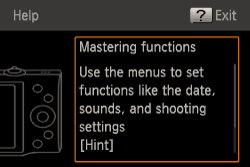
To continue reading the explanation, press the <><> buttons.
><> buttons.Press the <Help> () button again to return to the original display.
) button again to return to the original display.