





Changing the AF Frame Position and Size (PowerShot G12)
Solution
When the AF frame mode is set to [FlexiZone], you can change the position and size of the [AF Frame].

CAUTION
- The following explanations are provided based on the assumption that the [Shooting Mode] is set to [Program] (
 ).
). - If [AF Frame] is set to [FlexiZone], the [AF Frame] will be 1 frame.
- To change the position or size of the [AF Frame], it is necessary for the [Shooting Mode] to be set to one of the following modes.
- [Custom1, 2] ( ,
, ), [Manual] (
 ), [Aperture Priority] (
 ), [Shutter Speed Priority] (
 ), [Program] ()
,), [Manual] (), [Aperture Priority] (), [Shutter Speed Priority] (), [Program] ()1. Press the <Power> button on the camera.
2. Press the <MENU> ( ) button.
) button.3. The following window appears.
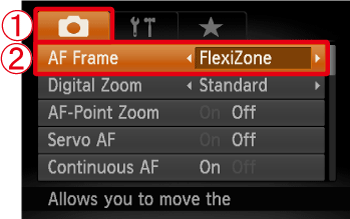
Operate the <directional buttons> to select  the [Shooting] (
 ) menu.
the [Shooting] () menu.Operate the <directional buttons> to set  [AF Frame] to [FlexiZone].
[AF Frame] to [FlexiZone].After the settings are completed, press the <MENU> () button.
) button.To change the position or size of the [AF Frame], continue with the steps below.
4. Press the <AF Frame Selector> ( ) button.
) button.
5. The following window appears.
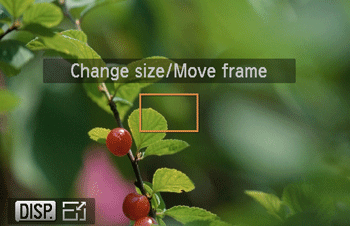
The [AF Frame] will turn orange.
6. Change the position of the [AF Frame].

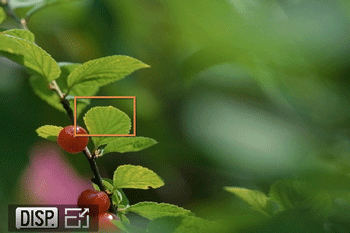
Rotate either the <Front Dial> or the <Control Dial> to change the position of the [AF Frame].
<Front Dial> or the <Control Dial> to change the position of the [AF Frame].Also, you can make fine adjustments to the position of the [AF Frame] by operating the <directional buttons>.

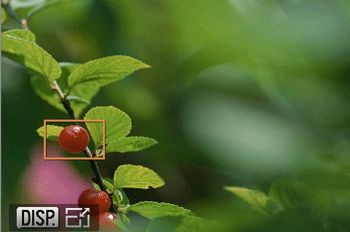
7. Change the size of the [AF Frame].

If you press the <DISP.> button ( ), the [AF Frame] will become smaller.
), the [AF Frame] will become smaller.If you press the <DISP.> button () once more, it will return to its normal size.
) once more, it will return to its normal size.8. Press either the <AF Frame Selector> button () or the <FUNC./SET> button ( ) to complete the settings.
) or the <FUNC./SET> button () to complete the settings.
The [AF Frame] will return to being white.
NOTE
- If you press and hold the <AF Frame Selector> button (), the [AF Frame] will return to its original (center) position.
- When using the [Digital Zoom] or [Digital Tele-Converter], the [AF Frame] will be its normal size.