





If the camera is not detected by Windows Vista
Solution
If the camera is not recognized correctly by Windows Vista, check each of the following methods in order.
REFERENCE
If the camera is not recognized by the EOS Utility software, please check whether any of the following cases may be a remedy to the problem.
- The supported software version may differ depending on the camera you use and the operating system installed on the computer.
- When using a camera or computer that differs from the model used initially, please download the supported version of EOS Utility. Versions of the EOS Utility Updater for a variety of cameras/operating systems can be downloaded from the Canon homepage.
If multiple USB ports are available on the computer, switching the cable to another port may help the camera to be recognized correctly.
1. From [start] menu ( ), click [Control Panel] (
 ).
).
), click [Control Panel] ().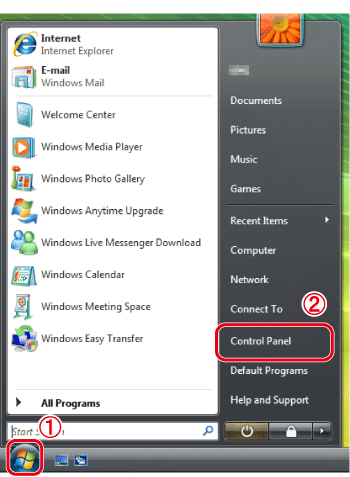
2. Click [Hardware and Sound].
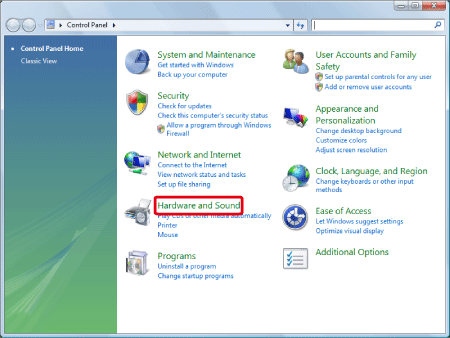
3. Click [Device Manager].
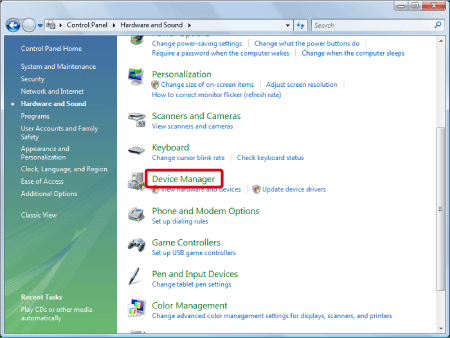
4. Double-click [Portable Devices].
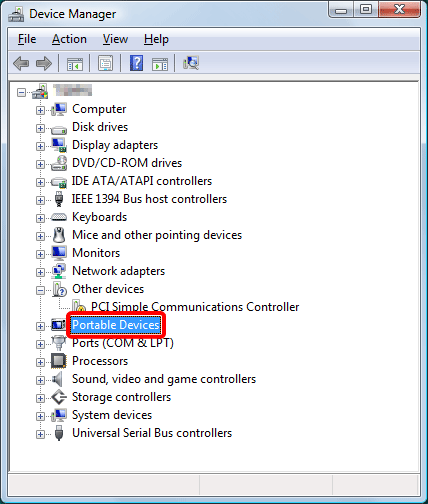
5. Click the model name of your camera, and click [  ](Uninstall).
Click the model name of your camera, and click [ ](Uninstall).
6. Click [OK].
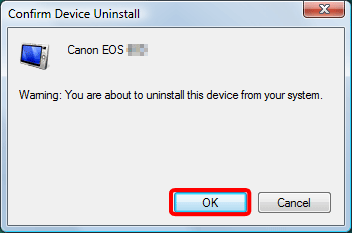
7. Click [  ](Scan for hardware changes).
](Scan for hardware changes).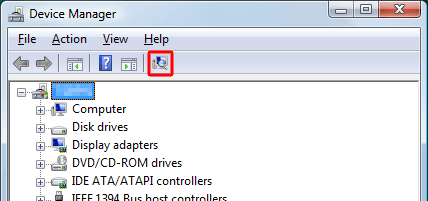
8. If a window like the one below appears, select [Downloads images from EOS camera] to download to a computer using EOS Utility. For details on downloading images using EOS Utility, see the EOS Utility Instruction Manual included on the CD-ROM bundled with your camera.*. Otherwise, click [  ] to close the window.
] to close the window.If the window does not appear, double-click the EOS Utility icon on the desktop to start the application.
*If the EOS Utility Instruction Manual was not included with you camera, please download it from the Canon homepage.
