





Playing back movies with a computer (Windows)
Solution
CAUTION
- In order to perform this operation, it is necessary to install [ZoomBrowser EX] from the CD-ROM (Canon Digital Camera Solution Disk) supplied with the product.
- Operations for Windows Vista are explained here. Images displayed or operation might differ slightly in Windows XP.
- In this section, [ZoomBrowser ver6.3] is used as an example to explain the operation. Depending on the version of your [ZoomBrowser], the screen indications and operation procedures may vary slightly.
- This function only supports movies that are in the [AVI (.AVI)] and [MOV (.MOV)] formats.
- Please transfer the movies or images that you want to play back to your computer beforehand. For details on how to transfer movies to a computer, please refer to the following pages.
1. Double-click the [ZoomBrowser EX] shortcut icon on your desktop to start [ZoomBrowser EX].

If you cannot find the [ZoomBrowser EX] shortcut icon on your desktop, click [Start] ( ) > [All Programs] or [Programs] > [Canon Utilities] > [ZoomBrowser EX] and select [ZoomBrowser EX] to start ZoomBrowser EX.
) > [All Programs] or [Programs] > [Canon Utilities] > [ZoomBrowser EX] and select [ZoomBrowser EX] to start ZoomBrowser EX.
2. [ZoomBrowser EX] starts, and the following window appears.
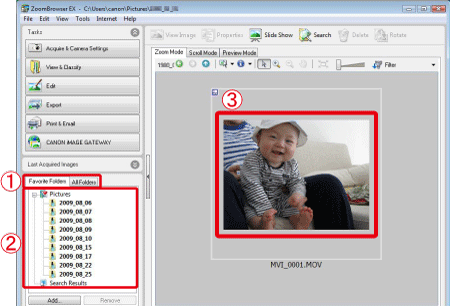
 Click the [Favorite Folders] tab or the [All Folders] tab.
 Select the folder where the target file is saved. (Movies are either saved to the [Pictures] or [My Pictures] folder by default.)
 Double-click the target movie.
3. The following window appears, and the selected movie is played back.
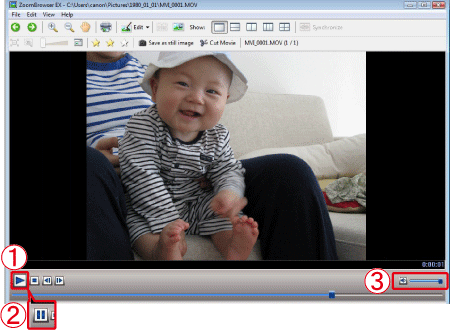 Click [Play] (
 ) to play the movie. (During movie playback, the [Pause] (
 ) button is displayed instead of the [Play] () button) Adjust the volume.