





Scanner Does Not Work
Issue
Cause and Solution
1. Restart the computer.
2. Follow the steps below to make sure that the machine is recognized by the computer, and if not, reinstall ScanGear (scanner driver).
- Windows Vista:
1. On the Start menu, right-click Computer, then select Properties.
2. Select Device Manager in the task area.
- Windows XP:
1. On the Start menu, right-click My Computer, then select Properties.
2. On the Hardware tab, select Device Manager.
- Windows 2000:
1. Right-click the My Computer icon, then select Properties.
2. On the Hardware tab, select Device Manager.
- If the Machine is Recognized
The model name is displayed under Imaging devices.
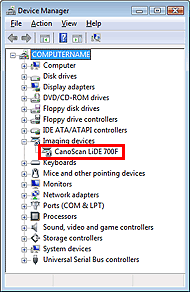
- If the Machine is Not Recognized
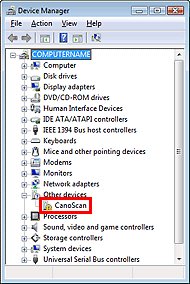
The model name is not displayed. (CanoScan may be displayed under Other devices.)
1. Restart the computer.
2. Follow the steps below to make sure that the machine is recognized by the computer, and if not, reinstall ScanGear (scanner driver).
(1) Select About This Mac from the Apple menu.
(2) Click More Info... in the window to display System Profiler.
(3) Click Hardware - USB.
(4)Make sure that CanoScan is displayed in USB Device Tree.
Uninstalling the ScanGear (Scanner Driver)
You can delete the ScanGear (scanner driver) you no longer use.
When deleting ScanGear, close all running applications and remove the cable connecting the machine and computer.
Insert the Setup CD-ROM into the computer's disc drive, click Custom Install, select the ScanGear (scanner driver) checkbox and reinstall it.
-> [ Installing the Software ]
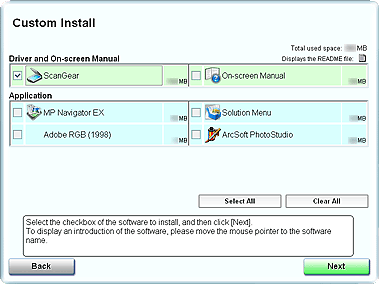
The above screen differs by model.
REFERENCE
Deselect the checkboxes to the left of applications that are already installed. These applications will not be reinstalled.