





Problems Receiving Faxes
Issue
Cannot Receive a Fax, Cannot Print a Fax
Cause and Solution
- Machine Does Not Switch Automatically between Voice and Fax Calls
- Quality of Received Fax is Poor
- Errors Often Occur When You Receive a Fax
- You cannot receive faxes if the power is turned off. Press the ON button to turn the power on.
- If you disconnected the power cord without turning off the power (the Power lamp is lit), reconnecting it turns on the power automatically.
- If you disconnected the power cord after pressing the ON button to turn off the power (the Power lamp is not lit), reconnect it, then press the ON button to turn on the power.
- If the power was turned off due to power failure, etc., the power is automatically turned on when the power failure is resolved.
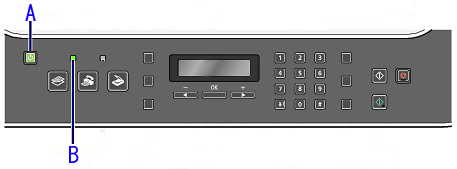
A:ON button (Power lamp)
B:In Use/Memory lamp
Either print or delete documents in the machine's memory to free it up, then ask the sender to resend the fax.
-> [ Document Stored in Memory ]
- Check the LCD for an error message.
- Print the Activity report and check for an error.
Check that the telephone line is connected correctly to the Telephone Line Jack and that the telephone (or another external device such as an answering machine or a computer modem) is connected correctly to the External Device Jack. Refer to your setup manual.
Confirming the Telephone Line Connection
For the basic connection of the machine, refer to the printed manual: Getting Started. This guide describes other typical connection.
The machine cannot send/receive faxes if the connection is incorrect. Connect the machine correctly.
If a different size of paper from that specified by Page size is loaded on the Rear Tray, incoming faxes will not be printed completely and will be stored in memory. Load the same size of paper as that specified by Page size on the Rear Tray, then press the OK button on the machine.
If Page size is set to other than A4, 8.5"x11"(LTR), or Legal (or 8.5"x14"), the received fax will not be printed and will be stored in memory (Memory Reception). Set Page size to A4, 8.5"x11"(LTR), or Legal (or 8.5"x14").
If paper is not loaded on the Rear Tray, received faxes will be stored in memory without being printed. Load paper on the Rear Tray, then press the OK button.
Loading Paper
Loading Plain Paper/Photo Paper
See[Loading Paper ]
If the ink has run out, received faxes will be stored in memory without being printed. Replace the FINE Cartridge, then print the faxes in memory.
-> [ Document Stored in Memory ]
NOTE
- If the machine was receiving faxes in the fax mode, printing will start automatically after the FINE Cartridge is replaced.
-> [ Replacing FINE Cartridges ]
- You can set the machine to forcibly print a received fax even if the ink has run out. However, part or all of the fax may not be printed since the ink has run out. Also, the contents of the fax will not be stored in memory. In addition, if the ink has already run out, we recommend that OFF be selected for Auto print in User settings to store the received fax in memory and print the fax manually after replacing the FINE Cartridge.
Check the receive mode setting and change it to a mode suited to your connection if necessary.
Set Fax reception reject to OFF.
Set Caller ID service to Unsubscribed
•Machine Does Not Switch Automatically between Voice and Fax Calls
If the receive mode is set to Fax only mode, there will be no automatic switching between voice and fax calls. Set the receive mode to Fax priority mode, DRPD*1, or Network switch*2. If the receive mode is TEL priority mode and an answering machine is connected to the machine, check whether a proper message is played back when the answering machine answers.
This setting is available only in the US and Canada.
*1 This setting is available only in the US and Canada.
*2 This setting may not be available depending on the country or region of purchase.
•Quality of Received Fax is Poor
Set ECM RX to ON.
If ECM RX is enabled, the sender's fax machine resends the fax after correcting errors automatically.
The image quality of the fax is mainly determined by the sender's fax machine. Contact the sender and ask the sender to check whether the scanning area of the fax machine is dirty.
Check 3: Is ECM transmission/reception enabled although the line/connection is poor, or is the sender's fax machine compatible with ECM?
- On your machine, select ON for ECM RX on Reception settings.
- Contact the sender and ask the sender to check whether the machine is set to enable ECM transmission.
- If the sender's or recipient's fax machine is not compatible with ECM, the fax will be sent/received in the standard mode.
- Reduce the reception start speed.
•Errors Often Occur When You Receive a Fax
If the telephone line or connection is poor, reducing the reception start speed may correct the error.
Reduce the reception start speed.
Contact the sender and ask the sender to check whether the fax machine is operating normally.