





Checking and Deleting Documents in Memory
Solution
You can check and delete documents in memory using  [Job Cancel/Status Monitor].
[Job Cancel/Status Monitor].Press [Job Cancel/Status Monitor] to check the job status and cancel the jobs.
[Job Cancel/Status Monitor] to check the job status and cancel the jobs.*You cannot check and cancel network scan jobs from the Status Monitor screen (MF4380dn/MF4370dn Only).
You can check the detailed information of fax documents currently being sent or waiting to be sent, then cancel the jobs as necessary.
1. Press [Job Cancel/Status Monitor] repeatedly to select <TX/RX STATUS> or <JOB CANCEL>, then press [OK].
[Job Cancel/Status Monitor] repeatedly to select <TX/RX STATUS> or <JOB CANCEL>, then press [OK].If you select <JOB CANCEL>, press [  ] or [
  ] to select <TX/RX>, then press [OK].
] or [ ] to select <TX/RX>, then press [OK].
2. Press [ ] or [ ] to scroll trough the job list.
] or [ ] to scroll trough the job list.If you want to delete a job, go to the next step.
Otherwise, press  [Stop/Reset] to return to the standby mode.
[Stop/Reset] to return to the standby mode.
3. Press [ ] or [ ] to select the job you want to delete, then press [OK].
] or [ ] to select the job you want to delete, then press [OK].
NOTE
For <BROADCAST>, all recipients entered for a broadcasting job will be canceled.
4. Press [ ] or [ ] to select <CANCEL>, then press [OK].
] or [ ] to select <CANCEL>, then press [OK].
5. Press [ ] to select <YES>.
] to select <YES>.If you do not want to cancel the job, press [ ] to select <NO>.
] to select <NO>.
6. Press [Stop/Reset] to return to the standby mode.
[Stop/Reset] to return to the standby mode.You can check and delete received documents in memory. You can also forward them to a desired destination.
1. Press [Job Cancel/Status Monitor] repeatedly to select <TX/RX STATUS>, then press [OK].
[Job Cancel/Status Monitor] repeatedly to select <TX/RX STATUS>, then press [OK].
2. Press [ ] or [ ] to scroll trough the job list.
] or [ ] to scroll trough the job list.If you want to delete a job, go to the next step.
Otherwise, press [Stop/Reset] to return to the standby mode.
[Stop/Reset] to return to the standby mode.
3. Press [ ] or [ ] to select the job you want to delete, then press [OK].
] or [ ] to select the job you want to delete, then press [OK].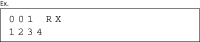
4. Press [ ] or [ ] to select <CANCEL>, then press [OK].
] or [ ] to select <CANCEL>, then press [OK].
NOTE
You can forward the selected job to another destination , if you select <FORWARD>.
5. Press [ ] to select <YES>.
] to select <YES>.If you do not want to cancel the job, press [ ] to select <NO>.
] to select <NO>.
6. Press [Stop/Reset] to return to the standby mode.
[Stop/Reset] to return to the standby mode.You can check the status of report jobs and cancel a job before the printing starts.
NOTE
Make sure that the Processing/Data indicator is on or blinking. When the Processing/Data indicator is off, there are no jobs in the memory of the report job status.
1. Press [Job Cancel/Status Monitor] repeatedly to select <REPORT STATUS>, then press [OK].
[Job Cancel/Status Monitor] repeatedly to select <REPORT STATUS>, then press [OK].2. Press [ ] or [ ] to scroll through the job list, and check the status of the report jobs.
] or [ ] to scroll through the job list, and check the status of the report jobs.If you want to cancel the job, go to step 3.
Otherwise, go to step 6.
3. Press [ ] or [ ] to select the job you want to cancel, then press [OK].
] or [ ] to select the job you want to cancel, then press [OK].4. Press [ ] or [ ] to select <CANCEL>, then press [OK].
] or [ ] to select <CANCEL>, then press [OK].5. Press [ ] to select <YES>.
] to select <YES>.If you do not want to cancel the job, press [ ] to select <NO>.
] to select <NO>.6. Press [Stop/Reset] to return to the standby mode.
[Stop/Reset] to return to the standby mode.You can check the status of print jobs and cancel a job before the printing starts.
NOTE
Make sure that the Processing/Data indicator is on or blinking. When the Processing/Data indicator is off, there are no jobs in the memory of the print job status.
1. Press [Job Cancel/Status Monitor] repeatedly to select <PRINT STATUS>, then press [OK].
[Job Cancel/Status Monitor] repeatedly to select <PRINT STATUS>, then press [OK].2. Press [ ] or [ ] to scroll through the job list, and check the status of the print jobs.
] or [ ] to scroll through the job list, and check the status of the print jobs.If you want to cancel the job, go to step 3.
Otherwise, go to step 5.
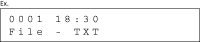
3. Press [ ] or [ ] to select the job you want to cancel, then press [OK].
] or [ ] to select the job you want to cancel, then press [OK].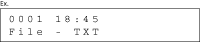
4. Press [ ] to select <YES>.
] to select <YES>.If you do not want to cancel the job, press [ ] to select <NO>.
] to select <NO>.
5. Press [Stop/Reset] to return to the standby mode.
[Stop/Reset] to return to the standby mode.