





Power lamp conditions and error messages displayed on the screen
Solution
If an error occurs with the printer, the color of the [Power Lamp] on the printer may change, and error messages may appear on the [LCD monitor].
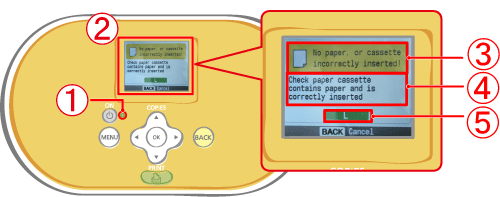
 [Power Lamp]
- Lights green : (Power on) Standby
- Blinks green : Printing
- Lights orange : Charging battery
- Blinks orange : Low battery
- Lights / blinks red : Error
- Blinks green : Printing
 [LCD monitor]
 Cause of the error
 Workaround
 Appropriate paper size (when a paper problem occurs)
Workaround not displayed on the [LCD monitor]
| Workaround |
| No paper, or cassette incorrectly inserted! | - Check that the paper cassette is firmly inserted all the way into the printer. - If the paper is not feeding correctly into the printer, remove the paper cassette and any paper left in the printer. |
| Paper jam! | - Contact a Canon Customer Support center if the paper will not come out even when the power is turned off and back on. |
| There is a problem with the ink cassette! | - Contact a Canon Customer Support center for assistance if the ink cassette is stuck in the printer. |
| Cannot read data from memory card! |
 ) to return to the original screen. ) to return to the original screen. |
| Communication error! | - When printing from a mobile phone (wirelessly), the maximum image file size that can be transmitted is approx. 2 MB (maximum file size varies depending on the mobile phone). - Press <BACK> ( ) to return to the original screen. |
| No images on card! | - Check to see if the memory card is properly inserted all the way into the slot. - Do the image files confirm to the Design rule for Camera File system? |
| Error! | - Turn the printer's power off and turn it on again. If the error message continues to display, contact a Canon Customer Support center for assistance. |