





Uploading Images to a Camera
Uploading Images to a Camera
You can upload images saved on a computer to a memory card in a camera.
|
Cautions:
|
||
|
|
-
|
For these operations, [ZoomBrowser EX] should be installed from the bundled CD-ROM (Solution Disk).
|
|
|
-
|
The following instructions are intended for Windows Vista. The screen images and operations may differ slightly in Windows XP and Windows 2000.
|
|
|
-
|
The position and shape of the operation buttons, images displayed, and setting items may differ according to the model.
|
|
|
-
|
Only images compliant with Design rule for Camera File system DCF standards can be uploaded to your camera’s memory card.
|
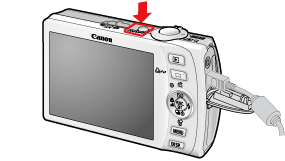
1. Connect the camera's [DIGITAL Terminal] and the PC's USB terminal with the [Interface Cable] supplied with the camera.
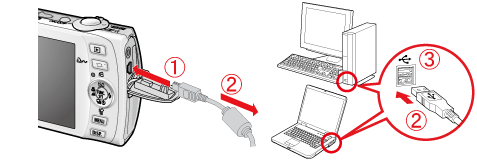
 Camera's [DIGITAL Terminal]
 [Interface Cable]
 PC's USB terminal
2. Press the <Power> button on the camera.
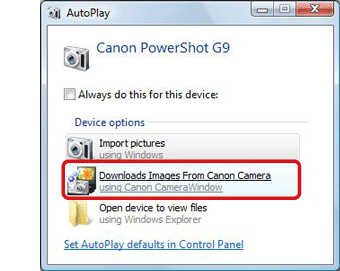
3. The following window appears. Click [Downloads Images From Canon Camera - using Canon CameraWindow].
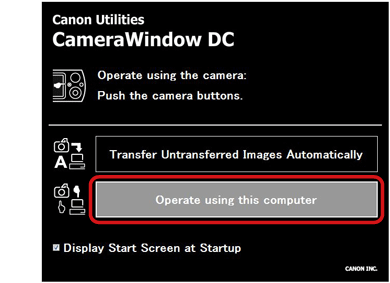
4. The following window appears. Click [Operate using this computer].
5. The following window appears. Click ( ) [Transfer to Camera] in the top-right corner of the window.
) [Transfer to Camera] in the top-right corner of the window.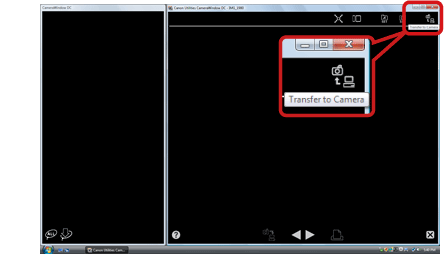
6. The following window appears.
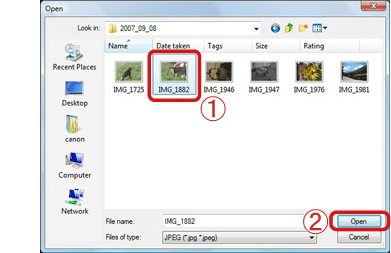 Select images to upload to the camera. Images downloaded to the computer using [ZoomBrowser EX] are usually in the [Picture] or [My Pictures] folder.Click [Open].
7. The following window appears. Click [OK].
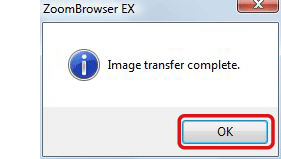
8. The following window appears.
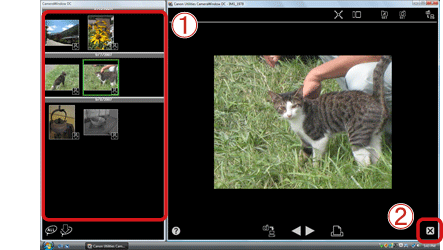 The images uploaded to the camera appear.Click (
 ) to close this window.
 This completes the process of uploading images to the camera.